Historical SharePoint Access Intelligence
Know who had access, when, and why.
SharePoint shows permissions as they are now. Auditors, legal holds and incident reviews ask what they were then. Access Witness records the history of SharePoint Online permissions and reconstructs the answer for any moment: who could reach what, at which level, and through which groups.
Installed on your own servers. Your SharePoint permission history stays in your own database; we never receive it.
- Where it runs
- On your Windows Server, with your SQL Server database. Installed by your own administrator.
- What stays with you
- Every permission, membership, sharing link and audit record it collects stays in your database. None of it reaches us.
- What reaches us
- A license check once a day and, if you turn on automatic updates, an update check. Never a name, a permission or a file.
SharePoint can tell you who has access now. What about six months ago?
Microsoft 365 administration tools show the present. When an auditor arrives, an insider is investigated or a file leaks, the questions are about the past, and SharePoint cannot answer them.
Why does this user have access?
A user appears in the permissions, but not by name. The access could come from a Microsoft 365 group, a nested Entra ID security group, a sharing link, or a folder three levels down that stopped inheriting.
Who gave this contractor access?
Contractors and guests arrive through groups and links. Naming the person who made the change, and the time, is the difference between a finding and an explanation.
Could this user reach Finance last March?
Standard SharePoint reports evaluate today. Memberships, role assignments and sharing links removed since then are gone from the answer.
Was the access direct or inherited?
An effective-permission label hides the path. Direct assignments and unique permissions have to be visible as such, because that is where exceptions and drift live.
Record, reconstruct, report.
Three steps, in that order. The middle one is the product.
Step 1
Record
It reads permissions, group memberships and the audit log on the schedule you set.
Step 2
Reconstruct
It keeps a continuous record of who had what, and every change in between, not just occasional snapshots.
Step 3
Report
The Dashboard answers for any moment, shows the route that gave the access, and exports the evidence.
Follow the access path.
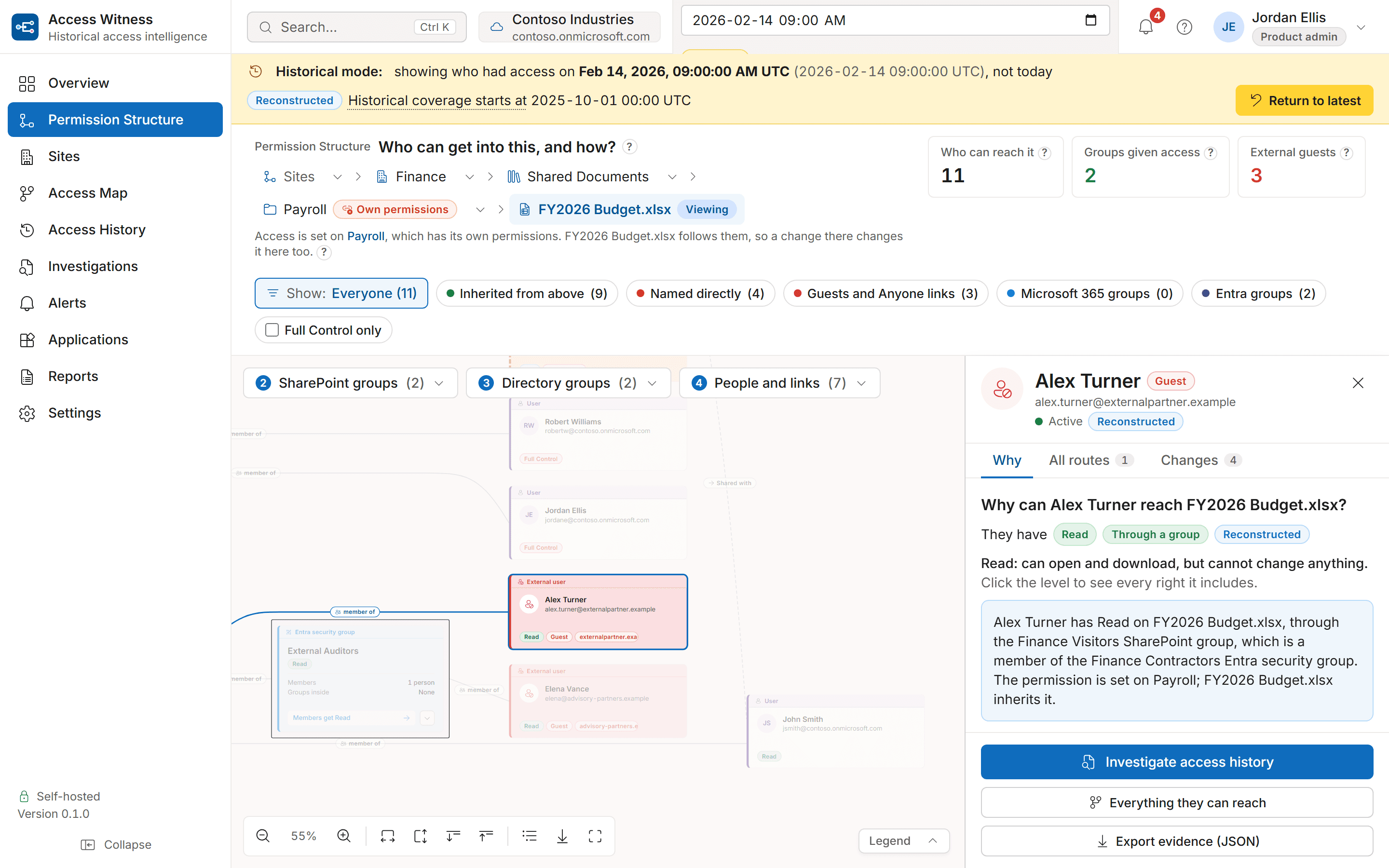
Instead of piecing together permission tables and group membership pages, follow the chain from a resource to the person holding access: resource, SharePoint group, Entra ID or Microsoft 365 group, user. Every path is kept, even when several collapse to the same level, and every connector says what kind of relationship it is.
Go back to any point in time.
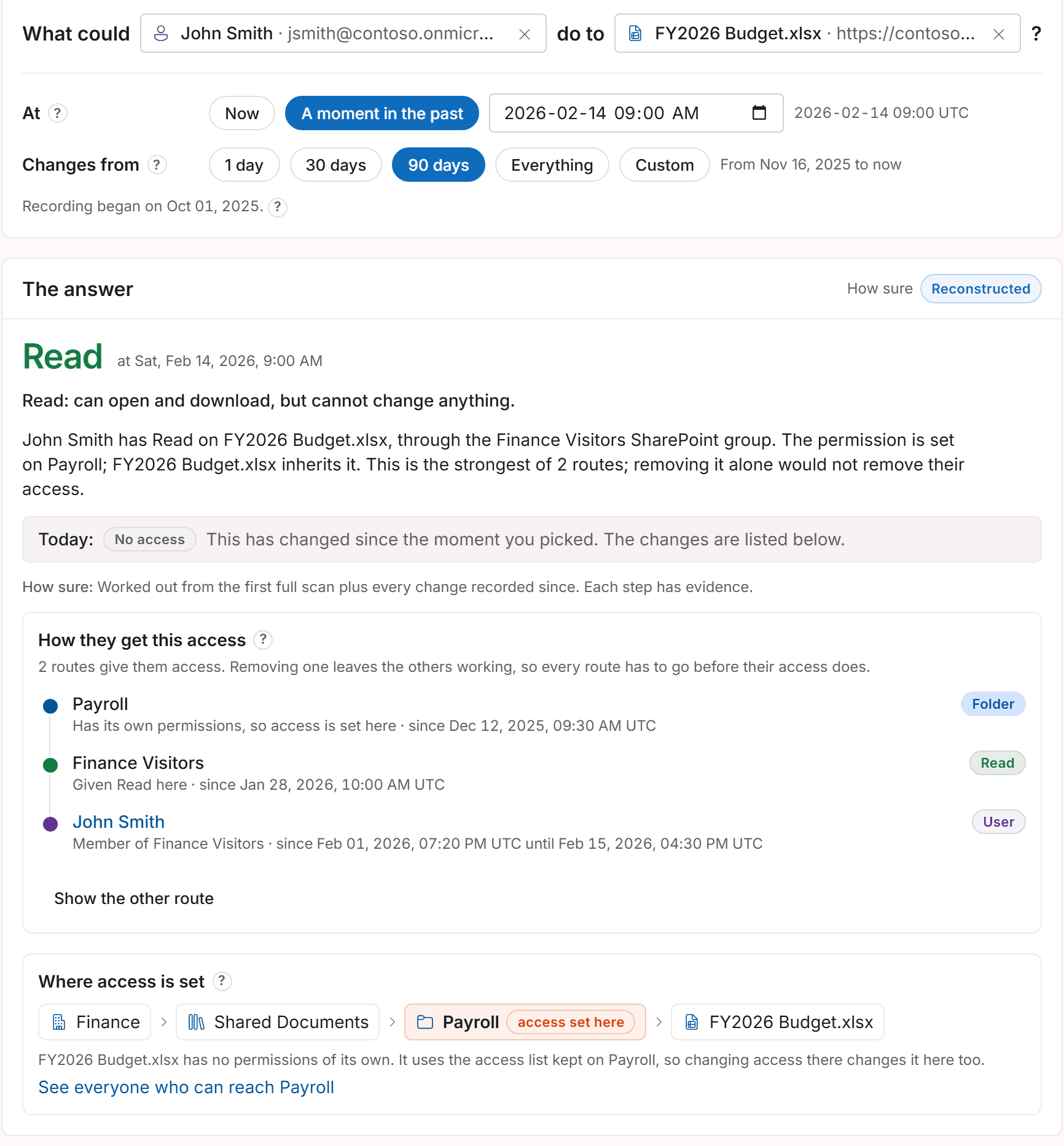
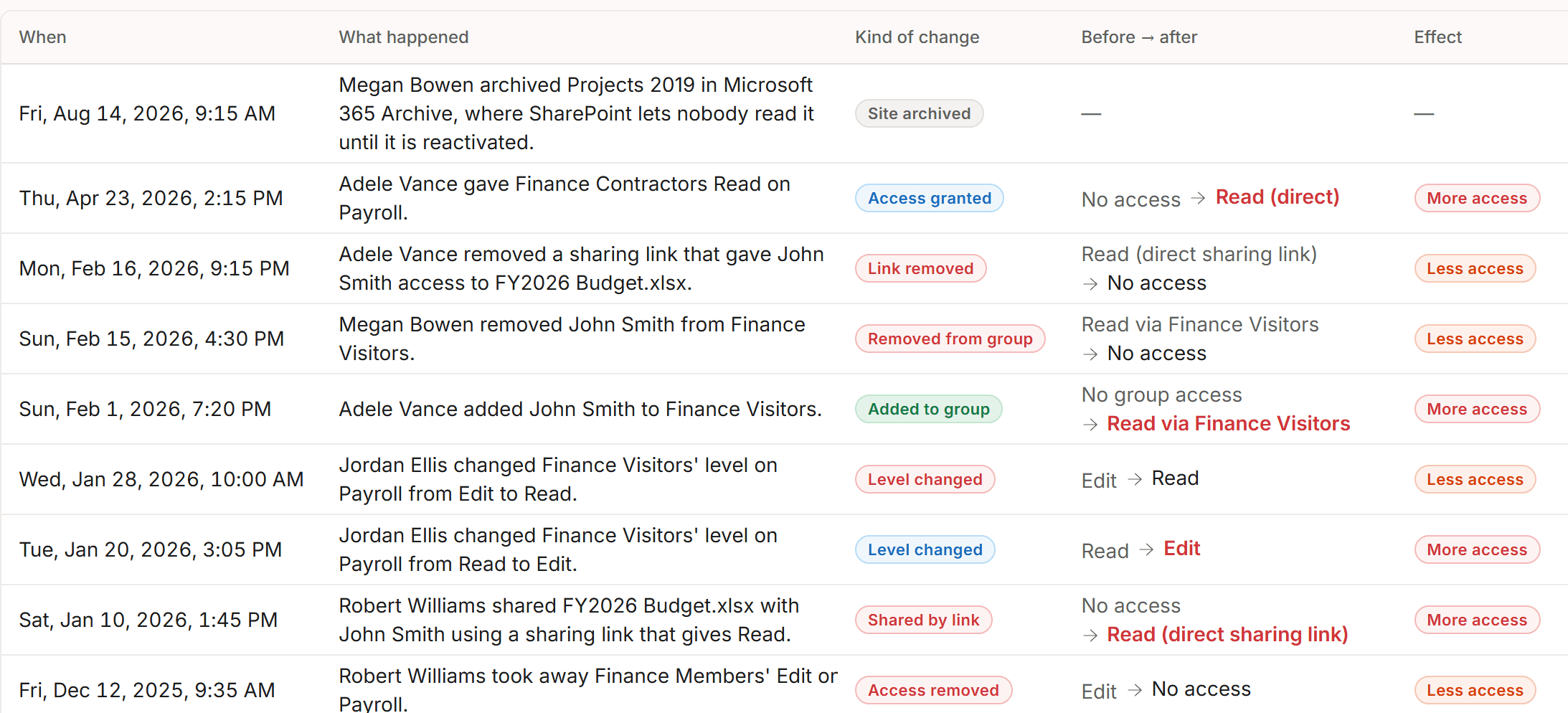
Choose a date and time and Permission Structure and Access Map answer for that instant: the permission structure, group memberships, sharing links and effective access, with the confidence of the answer stated up front. Access History takes a date of its own.
- One “View state at” selector sets Permission Structure and Access Map to the same past moment.
- Every answer says how sure it is (Verified snapshot, Reconstructed, Partial, Unknown) and from what date the record begins.
- Access History and the Access Map’s What changed tab show what was gained, lost or changed between two moments.
- History starts with the first full scan. Nothing earlier is guessed.
Don't just show the permission. Explain it.
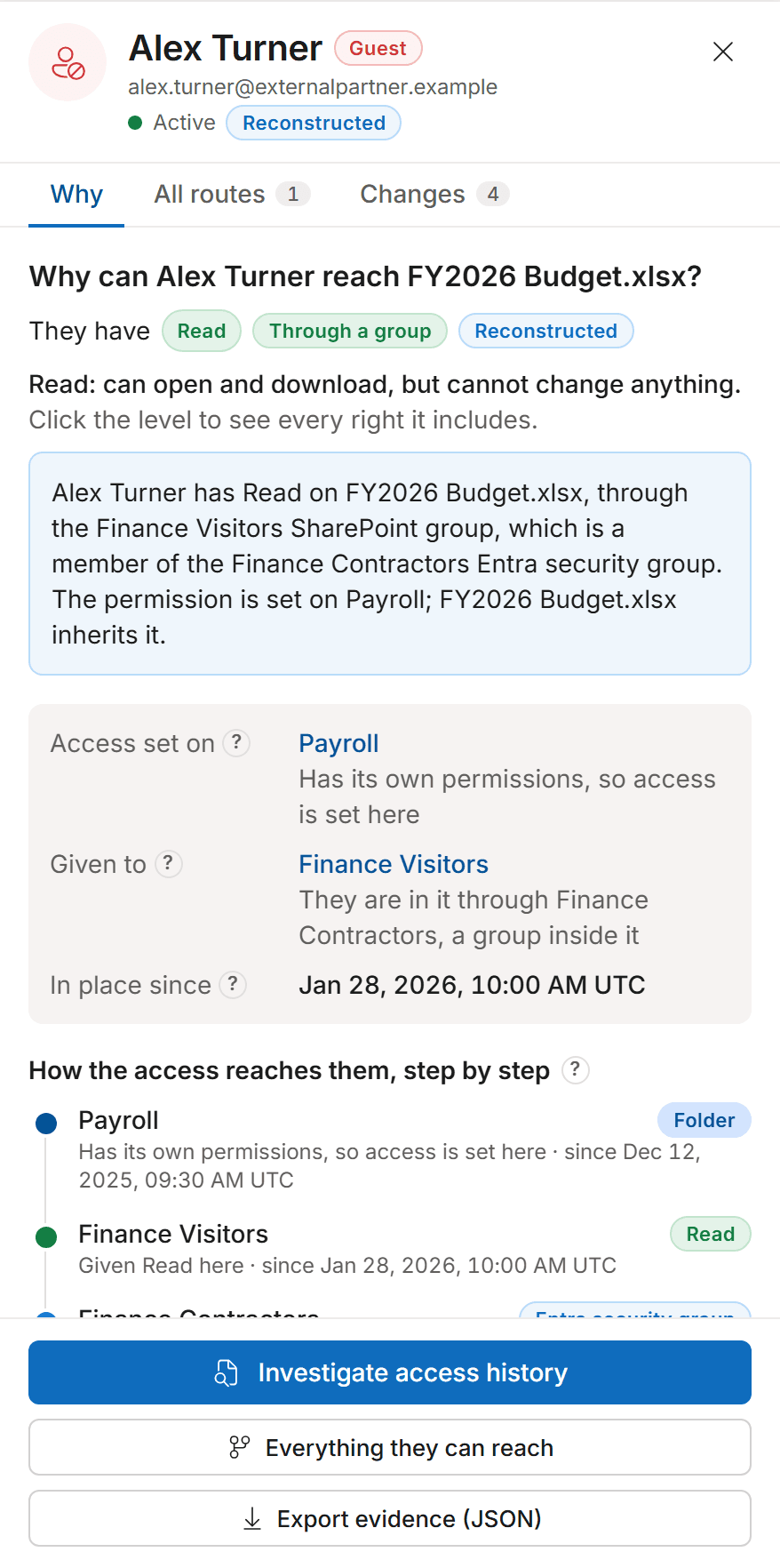
An effective-permission label is not evidence. It works out access step by step and shows the route, where each permission was set, and the evidence behind every step.
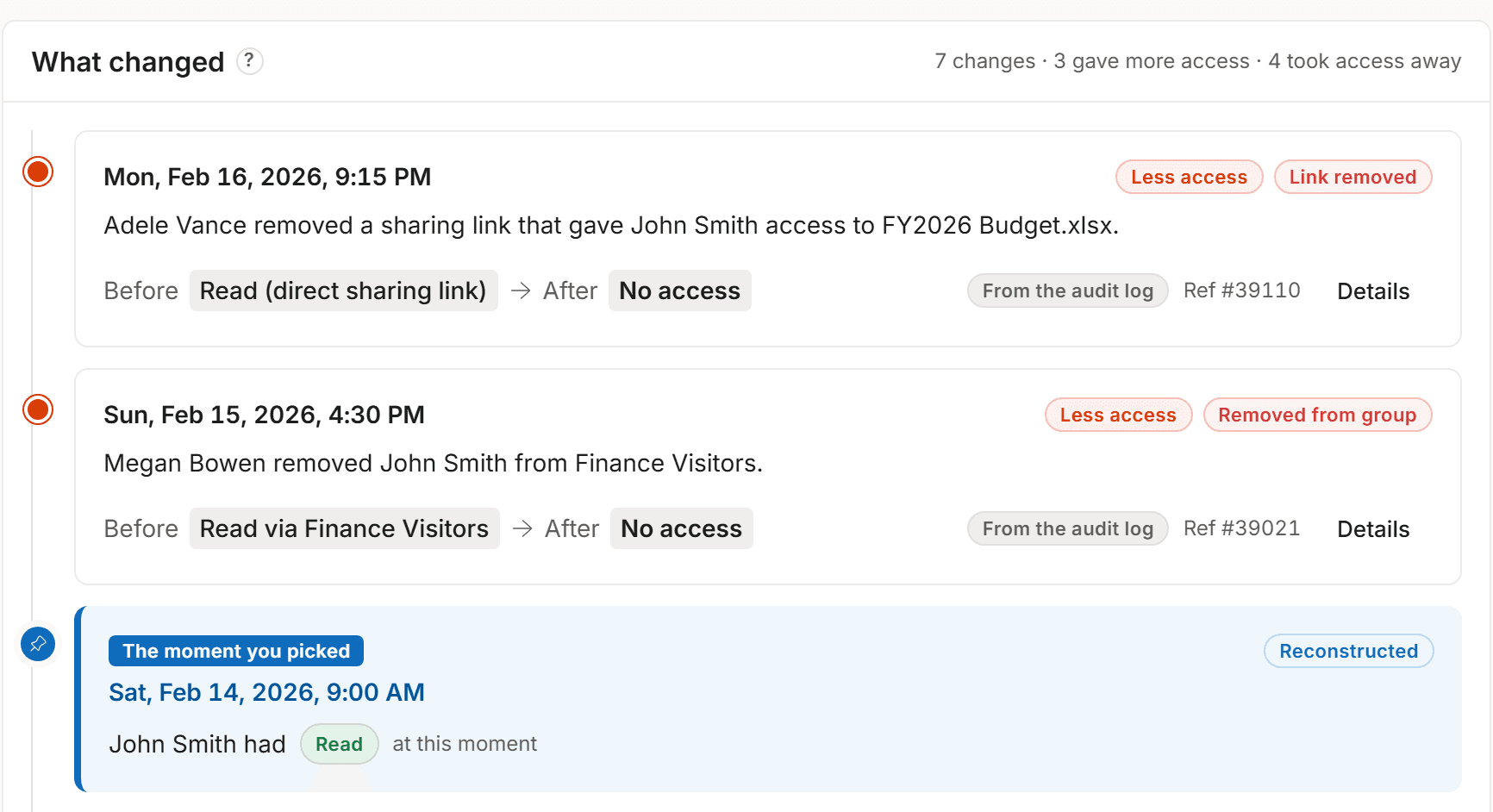
Turn permission changes into an investigation timeline.
Every change is attributed to an actor and a UTC timestamp, with the state before and after and the original audit record. Filter by who made it, whose access changed, where and when.
Your permissions. Your infrastructure. Your data.
Private Edition runs on a Windows Server you control and stores everything in your own SQL Server database. Only the license and update checks reach us.
Customer Microsoft 365 tenant
SharePoint Online, Entra ID
Your network
Permission data stays hereYour Windows Server
On-premises or in your Azure subscription
Your SQL database
SQL Server 2019 or later
No inbound connections
Nothing on the internet reaches in
Access Witness licensing
License and update checks
Your own database
Permission history, memberships and every recorded change stay in your own SQL Server database.Credentials stay on your server
The credentials it reads Microsoft 365 with are created on your server and never leave it. We never hold them.Outbound only
Nothing on the internet needs to reach your servers. They connect out to Microsoft 365 and to our licensing service. What we receive is listed on the security page.
Built for large tenants, and honest about the first scan.
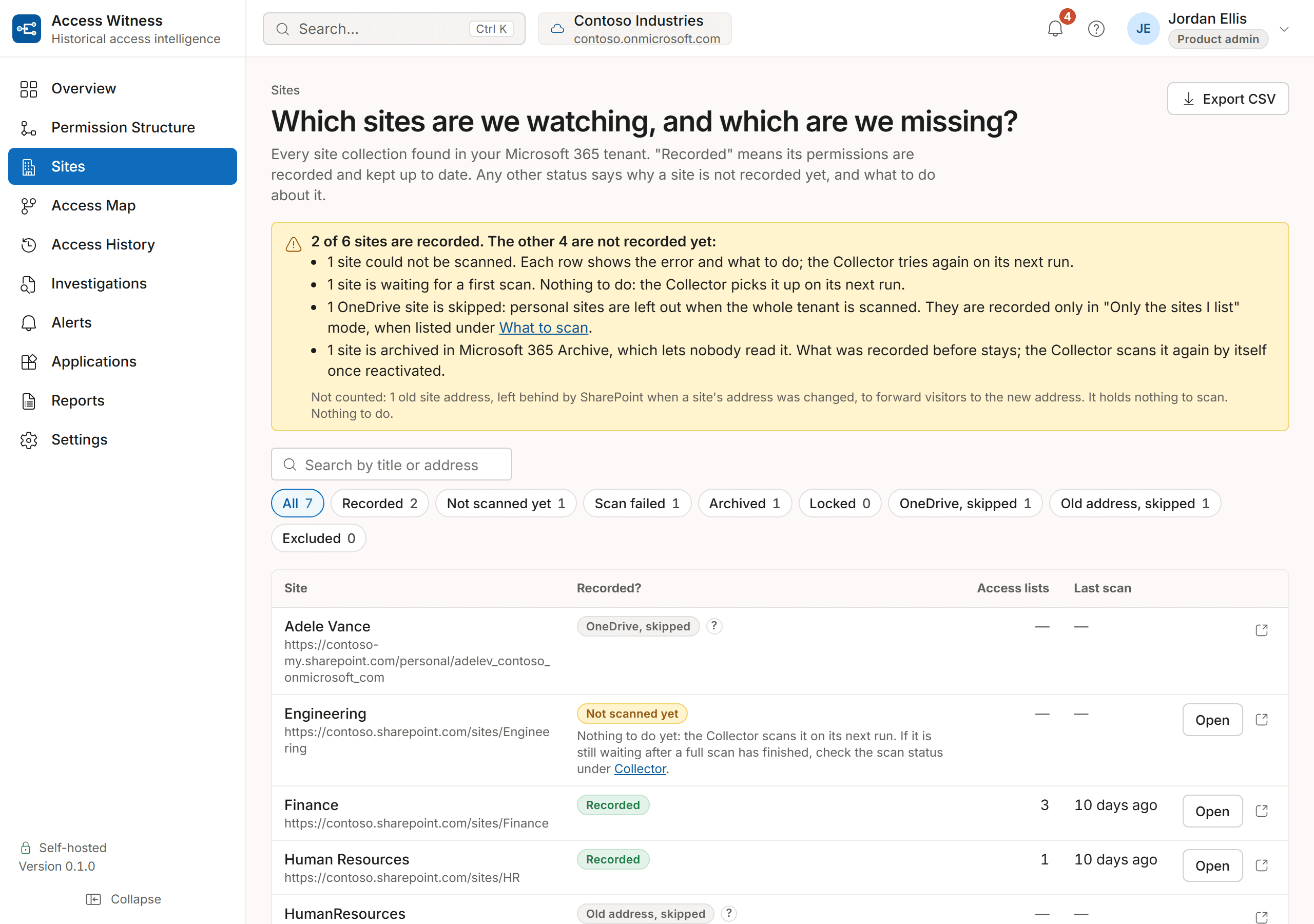
The first full scan of a very large tenant can take days, not hours. After that the record keeps up as Microsoft 365 reports changes, and the Sites page shows which sites are recorded and why any are not.
Built for the teams accountable for Microsoft 365 security.
Whether you are defending against data exposure or answering a statutory audit, the product gives you evidence you can explain.
Security investigations
Determine exactly who could reach confidential documents at the time of an incident, and how.Audit and compliance
Produce a historical access answer with its path, confidence and evidence trail for auditors.Permission troubleshooting
Resolve unexpected access with a deterministic explanation instead of trial and error in the admin center.External guest reviews
See every external identity, the group or link that admits it, and when that path appeared.
Take control of SharePoint access history
Stop reconstructing SharePoint permissions manually.
See how Access Witness records SharePoint permissions as they change and answers who had access on any past date, on a server you control.
Private deployment. Customer-controlled SQL database. Outbound-only connectivity.